MT5 For Beginners: Your First Steps in Trading
Welcome! This guide is designed for complete beginners who have never worked with MetaTrader 5 or trading before. We'll walk you through everything you need to get started.
What is MetaTrader 5 (MT5)?
MetaTrader 5 is a powerful trading platform used by millions of traders worldwide. It allows you to:
- Trade forex, stocks, commodities, and cryptocurrencies
- Analyze markets using charts and indicators
- Execute automated trading strategies
- Monitor your positions in real-time
Think of MT5 as your "cockpit" for accessing financial markets. CSharpMT5 lets you control this cockpit programmatically using C#.
Demo vs Real Account: Start Safe
Why Start with a Demo Account?
A demo account is a risk-free practice account with virtual money. We strongly recommend starting with demo for several reasons:
- ✅ Zero risk - practice with virtual funds ($10,000 - $100,000 typically)
- ✅ Real market conditions - live prices and market behavior
- ✅ Learn the platform - understand how MT5 works before risking real money
- ✅ Test your code - perfect for developing and testing your CSharpMT5 applications
Real Account
A real account uses your actual money. Only switch to real trading when you:
- Understand how MT5 works
- Have tested your strategies thoroughly on demo
- Are comfortable with the risks involved
Quick Start: Creating a Demo Account
The fastest way to get started is creating a demo account directly through the MT5 terminal application.
Step 1: Download and Install MT5 Terminal
-
Visit the official MetaTrader website: https://www.metatrader5.com/en/download
-
Download the version for your operating system (Windows/Mac/Linux)
-
Install the application
Alternative: Many brokers offer their own MT5 download links (pre-configured with their servers).
Step 2: Launch MT5 and Locate the Navigator Panel
When you open the MetaTrader 5 application, you'll typically see a popup window prompting you to:
-
Register in the MQL community
-
Open a new account or log into an existing one
If this popup doesn't appear automatically, you'll need to find the Navigator panel.
Locating the Navigator Panel:
The Navigator panel is usually located on the left side of the screen, below the Market Watch panel.
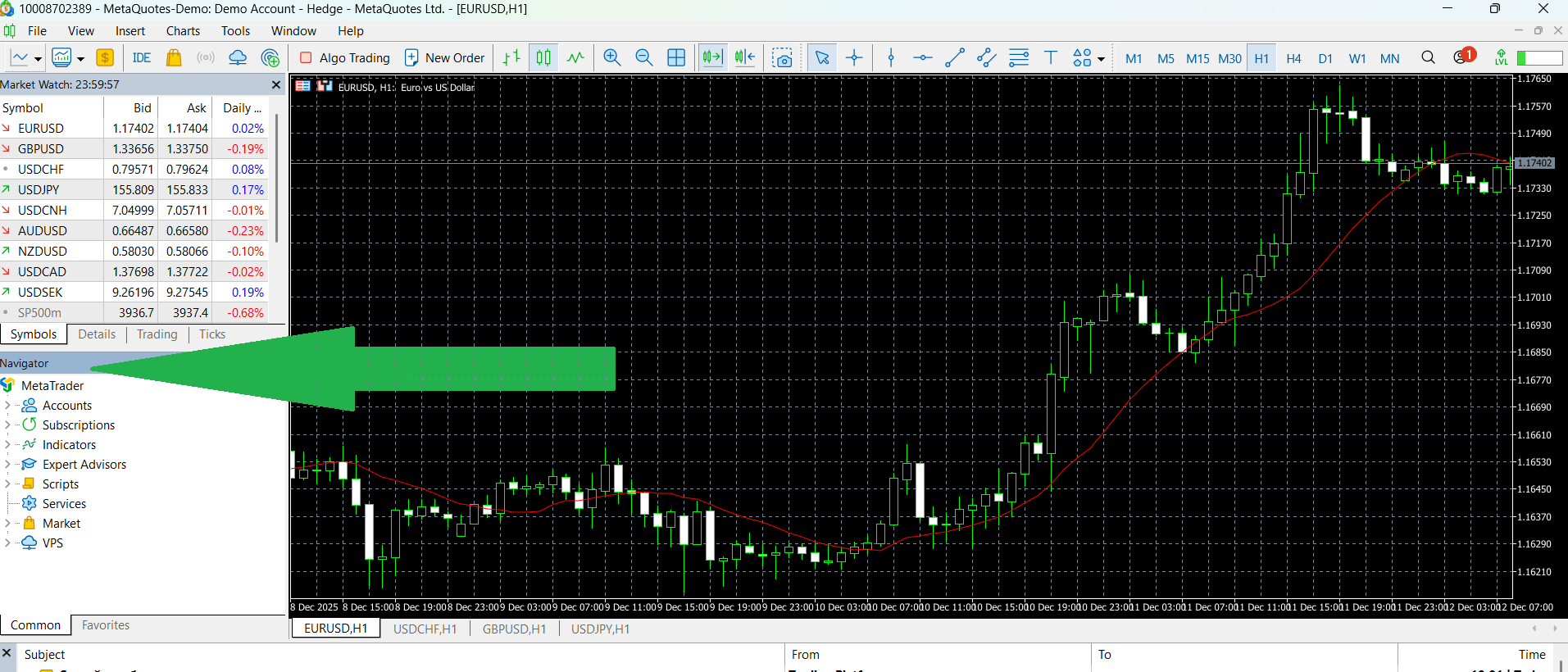
Inside the Navigator panel, you'll see several sections: - Accounts - Subscriptions - Indicators - Expert Advisors - And others
Step 3: Open a New Demo Account
- In the Navigator panel, locate the Accounts section
- Right-click on "Accounts"
- Select "Open an Account" from the context menu
This will open the broker server search panel.
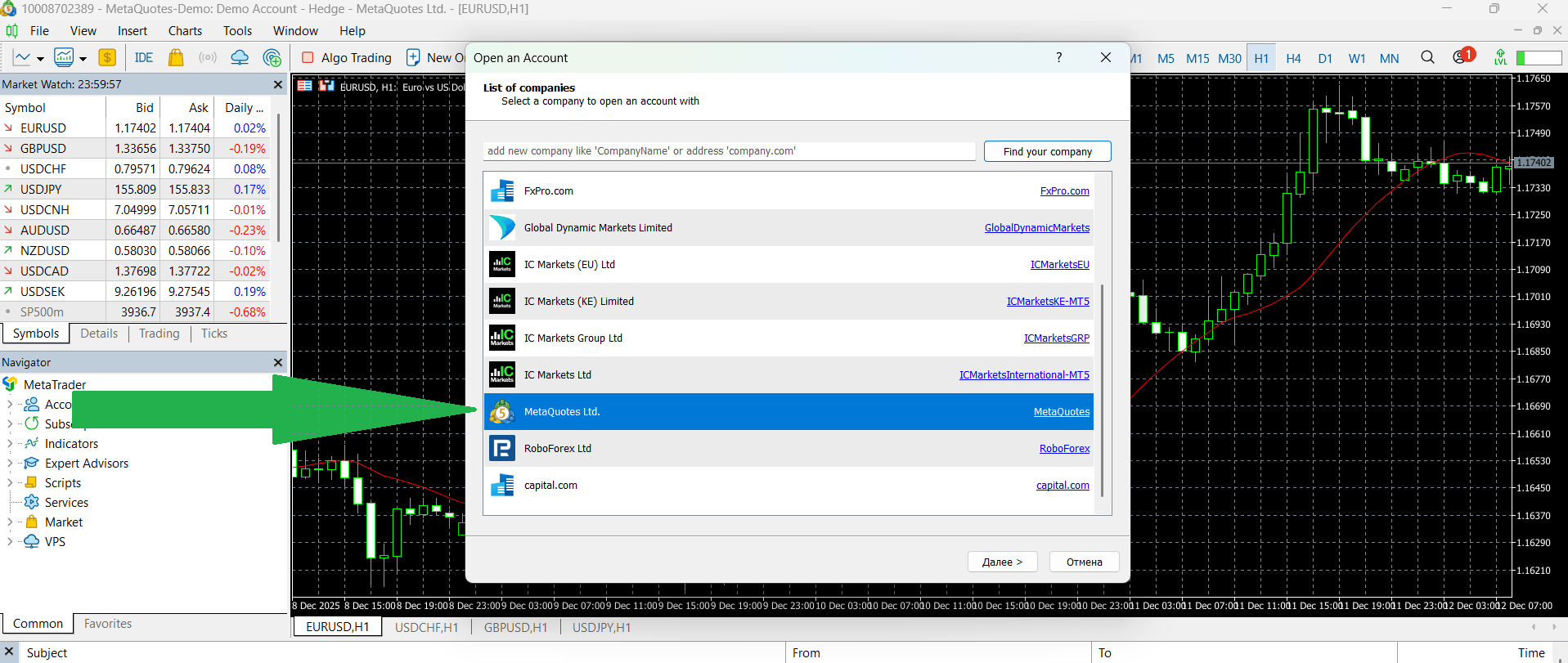
Step 4: Choose MetaQuotes Demo Server
In the broker search window, you'll see a list of available MT5 servers.
For your first demo account, we'll use the simplest option:
- Look for "MetaQuotes-Demo" or "MetaQuotes Ltd" in the list
- This is the default demo server provided by MetaTrader developers
- If you don't see it immediately, use the search box at the top to find it
Select the MetaQuotes server and click Next.
Step 5: Choose Account Type
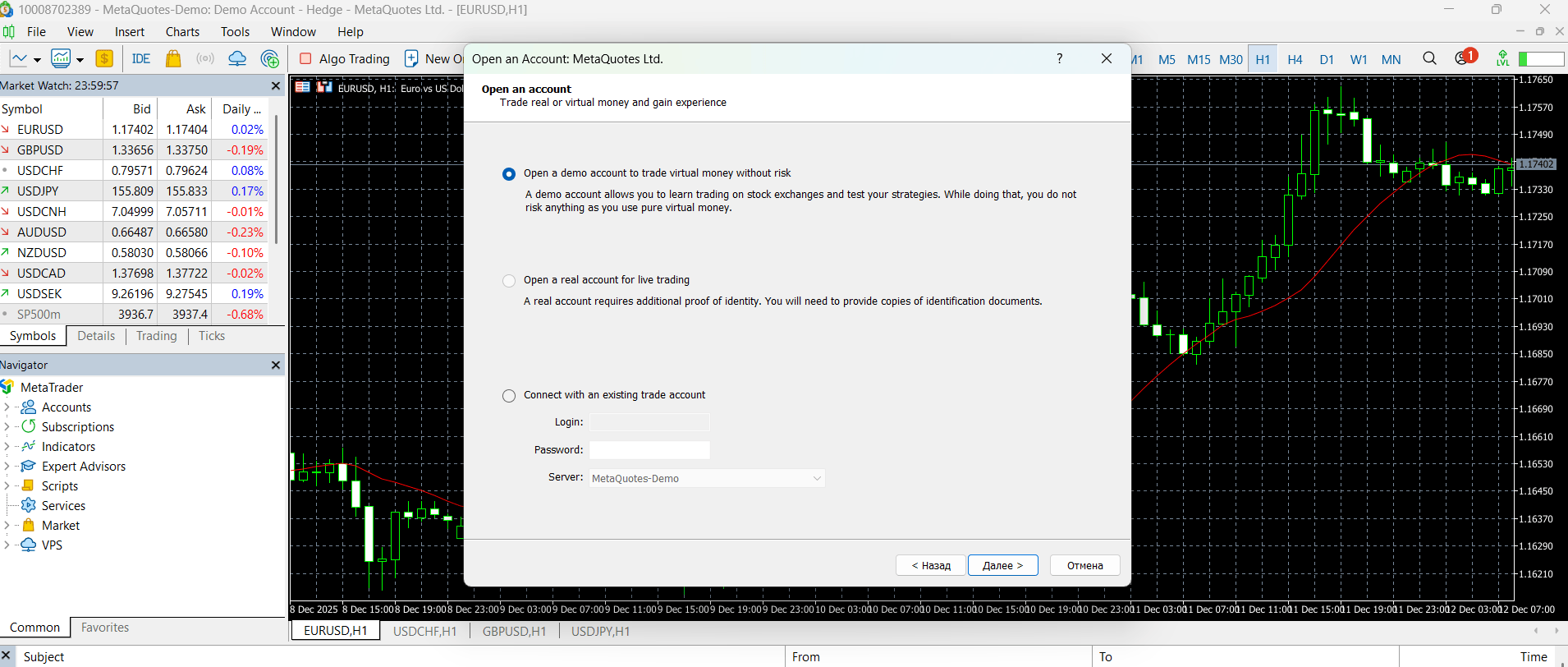
On the next screen, you'll have options to:
- Open a new demo account (top option)
- Log in to an existing account (demo or real)
Select "Open a new demo account" and click Next.
Step 6: Fill in Your Personal Information
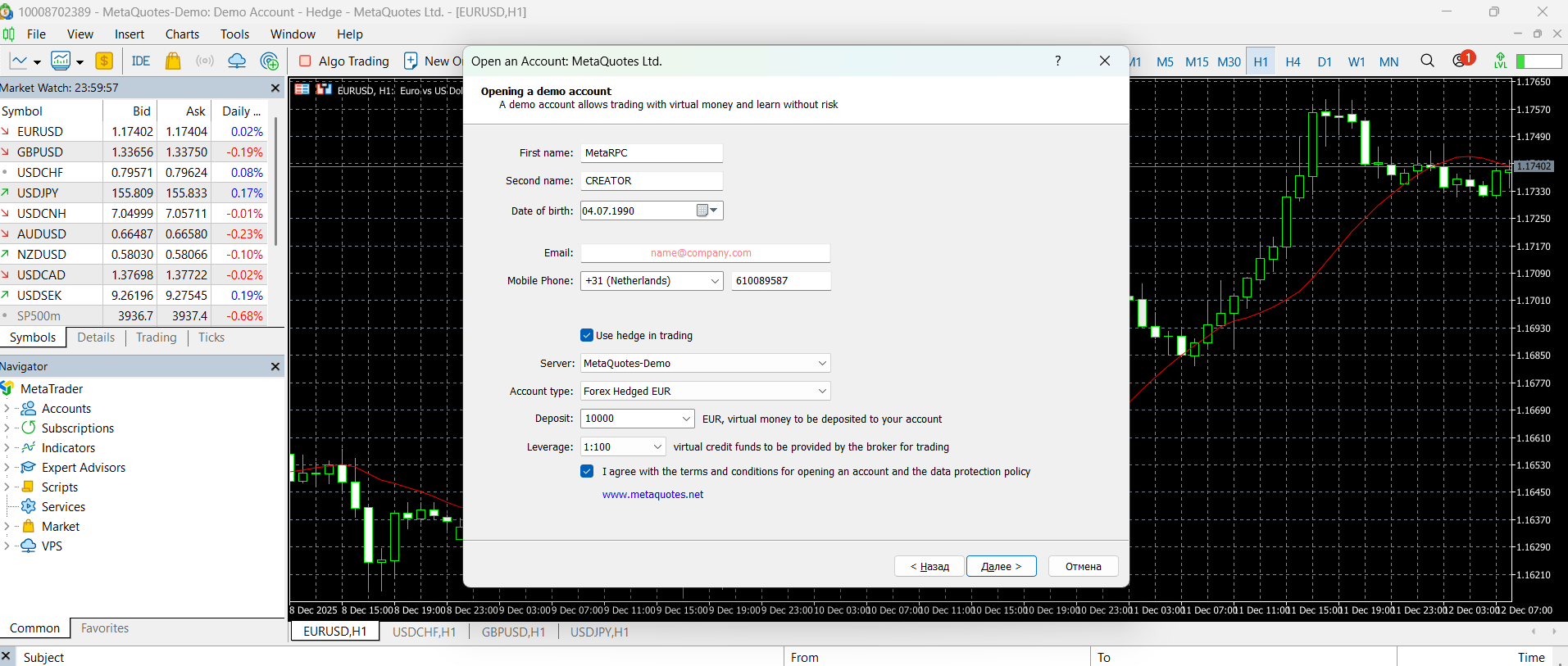
You'll now see a form asking for your details:
- Name: Your first name
- Last Name: Your last name
- Email: Your email address
- Phone: Optional (can skip for demo)
- Account Type: Choose your preferred account settings
- Deposit: Virtual amount (e.g., $10,000)
- Leverage: 1:100 is a good starting point
- Currency: USD, EUR, etc.
Check the box to agree to the terms and conditions, then click Next.
Step 7: Save Your Account Credentials
MT5 will now create your demo account and display your credentials:
Important credentials shown:
- Login: Your account number (e.g., 591129415)
- Password: Your master password for trading
- Investor Password: Read-only password (for monitoring)
- Server: The server name (e.g., "MetaQuotes-Demo")
⚠️ CRITICAL: Save these credentials immediately! You'll need them to:
- Log back into MT5
- Configure CSharpMT5 in Config\appsettings.json
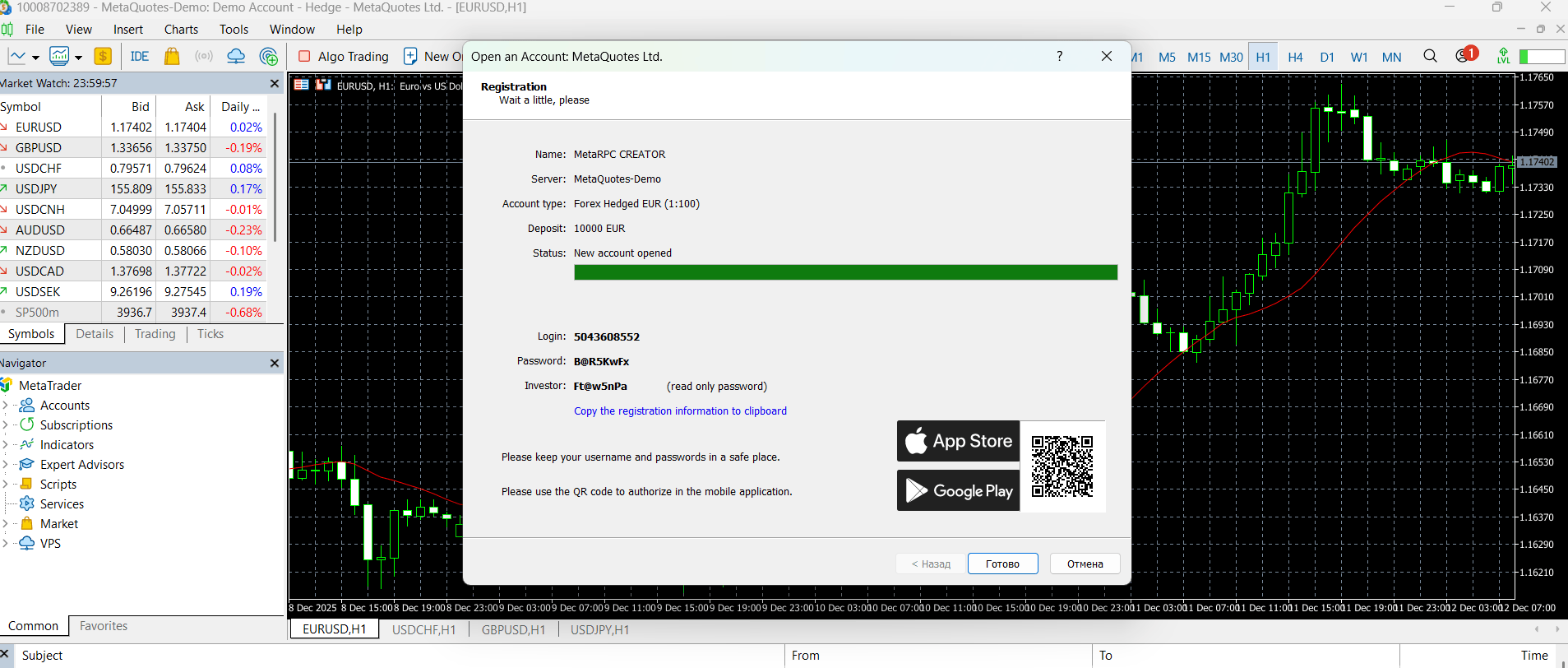
Click Finish to complete the account creation.
Step 8: Configure CSharpMT5 with Your Credentials
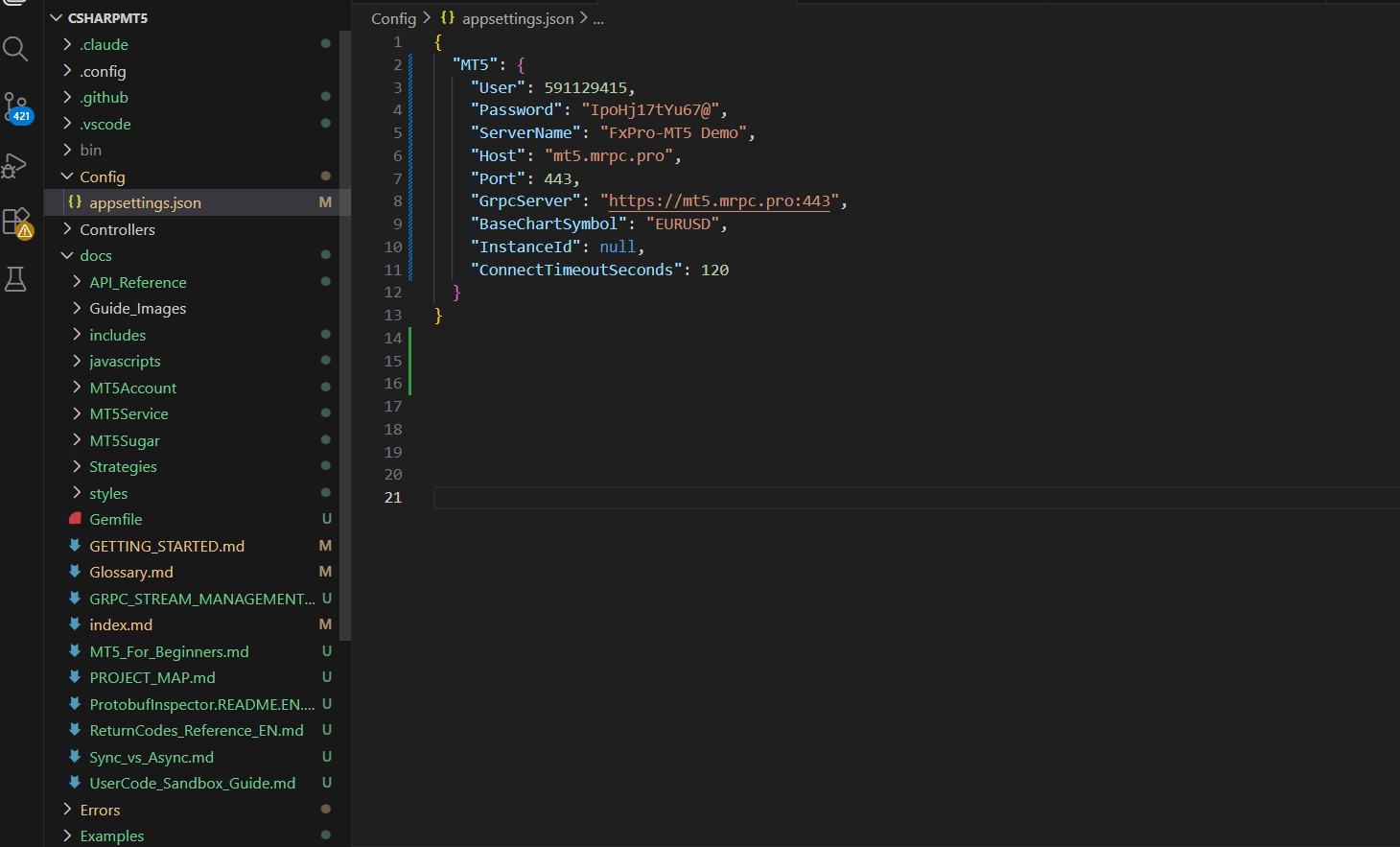
Now that you have your MT5 demo account, you need to configure CSharpMT5 to connect to it.
- Open your CSharpMT5 project
- Navigate to
Config\appsettings.json - Fill in the credentials you just saved:
{
  "MT5": {
    "User": 591129415,                    // Your Login number
    "Password": "YourPasswordHere",        // Your Password
    "ServerName": "MetaQuotes-Demo",       // Server name
    "Host": "mt5.mrpc.pro",                // Gateway host (provided by MetaRPC)
    "Port": 443,
    "GrpcServer": "https://mt5.mrpc.pro:443",
    "BaseChartSymbol": "EURUSD",
    "InstanceId": null,
    "ConnectTimeoutSeconds": 120
  }
}
Important notes:
- User: Replace with your account Login number
- Password: Replace with your account Password
- ServerName: Use the exact server name from MT5 (e.g., "MetaQuotes-Demo")
Step 9: Verify MT5 Connection
Back in the MT5 terminal:
- MT5 should automatically log you into your new demo account
- Check the bottom-right corner of the terminal window
- You should see:
- A green connection indicator (means connected to server)
- Your account balance (e.g., $10,000)
![Placeholder: Screenshot of MT5 bottom-right corner showing green indicator and balance]
You're now ready to start testing!
Step 10: Start Testing CSharpMT5
With your MT5 demo account created and configured in appsettings.json, you can now start running examples:
When trading operations occur, your demo account balance will increase or decrease accordingly. Feel free to experiment - it's virtual money, so there's no risk!
All trades executed by CSharpMT5 will appear in your MT5 terminal in real-time.
Understanding MT5 Password Types
MT5 uses two types of passwords for security and flexibility:
Master Password (Main Password)
- Full access to your trading account
- Can open/close trades, deposit/withdraw funds, change settings
- This is the password you created during account registration
- Use this password for:
- Trading (including CSharpMT5 applications)
- Modifying account settings
- Withdrawing funds (real accounts)
Investor Password (Read-Only Password)
- View-only access to your account
- Can see trades, balance, history - but cannot trade
- Useful for:
- Sharing your account performance with others (investors, friends)
- Monitoring your account without risk
- Auditing and analytics tools
How to get your Investor Password:
- In MT5, go to Tools → Options
- Select the Server tab
- Click Change next to "Investor Password"
- Set a new investor password
![Placeholder: Screenshot of investor password settings]
Choosing a Broker (Optional)
While you can use the MetaQuotes demo server for practice, you may want to choose a specific broker for:
- Real trading later
- Better demo conditions (spreads, instruments)
- Specific regional support
Popular MT5 Brokers:
Note: This is not financial advice. Always do your own research before choosing a broker.
- IC Markets - Popular for forex and low spreads
- Pepperstone - Well-regulated, good for beginners
- OANDA - Strong reputation, US clients accepted
- XM - Easy account opening, multiple account types
- RoboForex - Good for automated trading
What to Look For:
-
✅ Regulation - Check if regulated by FCA, ASIC, CySEC, etc.
-
✅ MT5 Support - Ensure they offer MT5 (not just MT4).
-
✅ Demo Account - Free demo without expiration (Although the demo account is usually valid for 30 days, it becomes inactive afterwards).
-
✅ Good Spreads - Lower spreads = lower trading costs.
-
✅ Customer Support - Responsive support in your language.
Basic Trading Terms (Glossary)
Before you start coding with CSharpMT5, familiarize yourself with these essential terms:
Market & Instruments
| Term | Description | Example |
|---|---|---|
| Symbol | A tradable instrument | EURUSD, AAPL, GOLD |
| Forex | Foreign exchange market (currency pairs) | EUR/USD, GBP/JPY |
| CFD | Contract for Difference (stocks, commodities) | Gold, Oil, Apple stock |
| Spread | Difference between buy and sell price | 2 pips on EURUSD |
| Pip | Smallest price movement | 0.0001 for EURUSD |
Trading Actions
| Term | Description |
|---|---|
| Buy (Long) | Open a position expecting price to go up |
| Sell (Short) | Open a position expecting price to go down |
| Lot | Trading volume (1.0 = 100,000 units in forex) |
| Position | An open trade |
| Order | A pending instruction to open a trade |
Risk Management
| Term | Description |
|---|---|
| Stop Loss (SL) | Automatic exit point to limit losses |
| Take Profit (TP) | Automatic exit point to lock in profits |
| Leverage | Borrowed funds to increase position size (e.g., 1:100) |
| Margin | Amount of funds required to open a position |
| Equity | Current account value (balance + floating profit/loss) |
Account Types
| Term | Description |
|---|---|
| Balance | Total funds in your account |
| Free Margin | Available funds to open new positions |
| Margin Level | Ratio of equity to used margin (safety indicator) |
For a complete glossary, see Glossary.md.
What's Next?
Now that you have a demo account and understand the basics, you're ready to:
1. Set Up CSharpMT5
Follow our main getting started guide to connect CSharpMT5 to your MT5 account:
👉 Getting Started with CSharpMT5
2. Understand the API Architecture
CSharpMT5 is built in three layers, from low-level to high-level. You can choose where to start based on your needs:
Layer 1: MT5Account (Low-Level gRPC Foundation)
- Direct gRPC calls to MT5 terminal
- The foundation of everything - all other layers use this internally
- Maximum control and flexibility
- Best for: Advanced users who need fine-grained control
Layer 2: MT5Service (Convenient Wrappers)
- Wrapper methods over MT5Account gRPC calls
- Simplified error handling and response parsing
- Easier to work with than raw gRPC
- Best for: Most common trading scenarios
Layer 3: MT5Sugar (High-Level Helpers)
- Syntactic sugar and convenience methods
- Chainable operations, smart defaults
- Most intuitive and beginner-friendly
- Best for: Quick prototyping and simple strategies
💡 Recommendation:
- Start with MT5Sugar if you're new to the SDK - it's the easiest
- Move to MT5Service when you need more control
- Deep dive into MT5Account when you need maximum flexibility or want to understand how everything works under the hood
Important Reminders
🛡️ Security
- Never share your master password with anyone
- Use investor password for monitoring/analytics tools
- Keep your credentials secure (use password managers)
📊 Risk Management
- Demo accounts are risk-free, but build good habits:
- Always use Stop Loss
- Don't risk more than 1-2% per trade
- Understand position sizing
🧪 Testing
- Test all your CSharpMT5 code on demo first
- Verify strategies over weeks/months, not days
- Paper trading (demo) doesn't guarantee real results
📚 Education
- Trading has a steep learning curve
- Focus on learning before earning
- Consider courses, books, and communities
Ready to start coding? Head over to Getting Started to connect CSharpMT5 to your MT5 account!